Quick answer
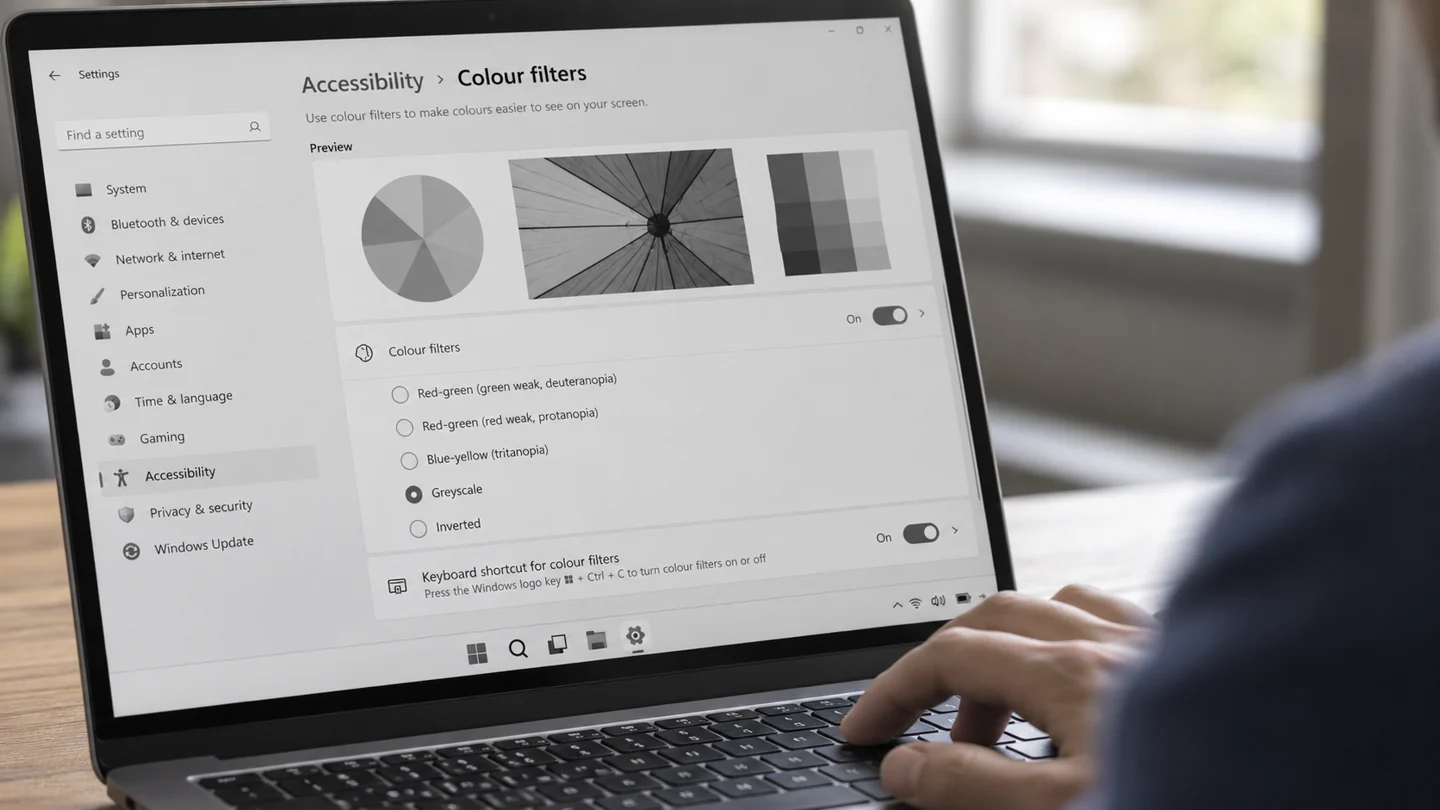
Inspect colour-filter settings before replacing the screen. A software filter can change colours across applications.
Understand the issue
Compare several windows and record whether the change followed a shortcut. Preserve the user's accessibility preferences while making a brief controlled comparison.
Step-by-step checks
- Open accessibility colour-filter settings.
- Check the active filter and shortcut preference.
- Compare the display with the intended setting.
Need help with this issue?
Share your model and symptoms. Confirm availability and the quote before booking.
What the results mean
A uniform software effect is different from local panel damage. Continue display diagnosis if the setting does not explain the symptom.
| Stage | Action |
|---|---|
| Start | Open accessibility colour-filter settings. |
| Compare | Check the active filter and shortcut preference. |
| Next step | Compare the display with the intended setting. |
Compare the screen, the signal and the displayed image
Note whether the problem appears before the operating system loads, in every app or only in one program. A manufacturer logo with the same defect points toward a different investigation from a single application rendering incorrectly. Check basic brightness, selected input and cable condition without repeatedly flexing a damaged screen.
Where supported, compare a known-good external display and a manufacturer-provided screen test. View a screenshot on another device if that helps distinguish the rendered image from the physical panel. These results narrow the fault but do not automatically identify one replacement part; cables, connectors and the graphics path can affect the result.
Keep a short record of when the fault occurs, including sleep, wake, docking and a particular resolution. After a repair or setting change, repeat those conditions and inspect both text and simple solid colours. Do not press the panel or dismantle a powered display assembly to test a theory. If there is cracking, liquid damage or a burning smell, stop ordinary software troubleshooting and arrange a suitable hardware assessment.
Before you finish
- Before-boot and app-only behaviour compared
- Known-good cable or display tested where suitable
- Screenshot distinguished from physical panel output
- Sleep, wake and original fault conditions retested
Repair checklist
If you need help, send RJ Computers your device model and the results of the checks above. Explain what must be preserved before work starts, especially files that have no other copy.
- Confirm assessment charges and what the quote includes.
- Ask for approval before additional parts or destructive software changes.
- Test the original symptom at handover and keep the repair details.
Ready for an assessment?
Share your model and symptoms. Confirm availability and the quote before booking.
Frequently asked questions
Does a grayscale desktop always mean panel failure?
No. Check colour filters and related display controls first.
What should I record before requesting help?
Record the full model, exact error or symptom, recent changes and what you already tried. Explain whether important files have a separate backup.
How do I arrange a repair assessment?
Call RJ Computers on +91 99715 24677 or use the WhatsApp booking button. Confirm availability, diagnostic fees and the scope of work before booking.
Conclusion
A uniform software effect is different from local panel damage. Continue display diagnosis if the setting does not explain the symptom.
Further reading: Official product guidance