Quick answer
Inspect the full recipient address before sending and correct outdated saved contact information. A suggestion is not proof that the address is current.
Understand the issue
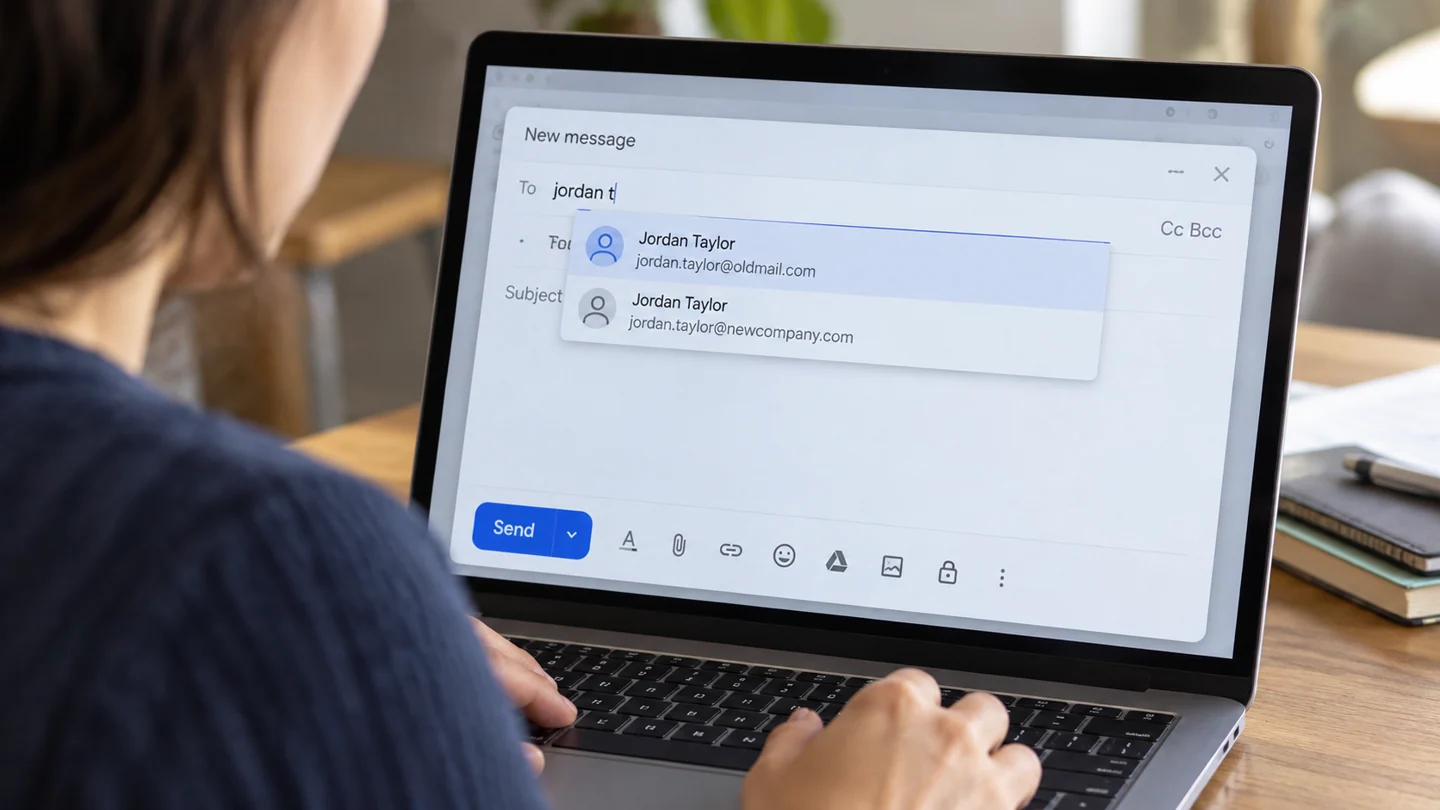
People with similar names and old work addresses can be easy to confuse. Confirm the intended address through an established route. Do not test by sending confidential material, and review every recipient when reusing an old thread.
Step-by-step checks
- Inspect the complete suggested address.
- Review the person's saved and other contact entries.
- Correct obsolete information and create a fresh test draft.
Need help with this issue?
Share your model and symptoms. Confirm availability and the quote before booking.
What the results mean
For sensitive mail, make recipient verification part of the final review even after cleaning suggestions.
| Stage | Action |
|---|---|
| Start | Inspect the complete suggested address. |
| Compare | Review the person's saved and other contact entries. |
| Next step | Correct obsolete information and create a fresh test draft. |
Check the account and message before changing mail settings
Confirm the account, mailbox and exact message involved. Several accounts can be open in one browser or mail app, making it easy to search or edit the wrong one. Use a known sender, subject and approximate date as your reference, while keeping message contents and addresses private in support screenshots.
Separate appearance from message state. A collapsed thread, hidden category, active filter or selected folder can make a message seem absent without deleting it. Likewise, a sharing link is different from an attached file, and a draft setting is different from a confirmed delivery. Check what the service actually reports rather than relying only on a successful click.
Test one harmless message or draft where appropriate before changing defaults for all mail. Review forwarding, sharing and automatic content downloads carefully because they affect privacy as well as convenience. After a change, confirm the intended account still sends, receives and displays mail correctly. Avoid removing accounts or deleting local archives as an early troubleshooting step; some messages or drafts may not have another copy.
Before you finish
- Correct account selected
- Known message and folder identified
- View settings distinguished from delivery state
- Private message data kept out of screenshots
Repair checklist
If you need help, send RJ Computers your device model and the results of the checks above. Explain what must be preserved before work starts, especially files that have no other copy.
- Confirm assessment charges and what the quote includes.
- Ask for approval before additional parts or destructive software changes.
- Test the original symptom at handover and keep the repair details.
Ready for an assessment?
Share your model and symptoms. Confirm availability and the quote before booking.
Frequently asked questions
Does choosing the right display name guarantee the right mailbox?
No. The actual email address is what determines the recipient.
What should I record before requesting help?
Record the full model, exact error or symptom, recent changes and what you already tried. Explain whether important files have a separate backup.
How do I arrange a repair assessment?
Call RJ Computers on +91 99715 24677 or use the WhatsApp booking button. Confirm availability, diagnostic fees and the scope of work before booking.
Conclusion
For sensitive mail, make recipient verification part of the final review even after cleaning suggestions.
Further reading: Official product guidance