Quick answer
Separate device settings from physical input faults before ordering parts. Compare a known-working external input device and record exactly which functions fail.
Understand the issue
This guide covers laptop trackpad not working windows 11. The useful starting point is to establish what happens, when it happens and whether recent changes are involved. Keep the original symptom separate from a proposed repair: a symptom alone rarely identifies the exact part or setting at fault.
Useful details to discuss
- Record the exact Windows error or screen message
- Try a normal restart only when the system is stable enough to do so
- Check recent updates, drivers or newly installed software
- Protect important data before reset or reinstall work
- Escalate persistent boot or system-file failures for diagnosis
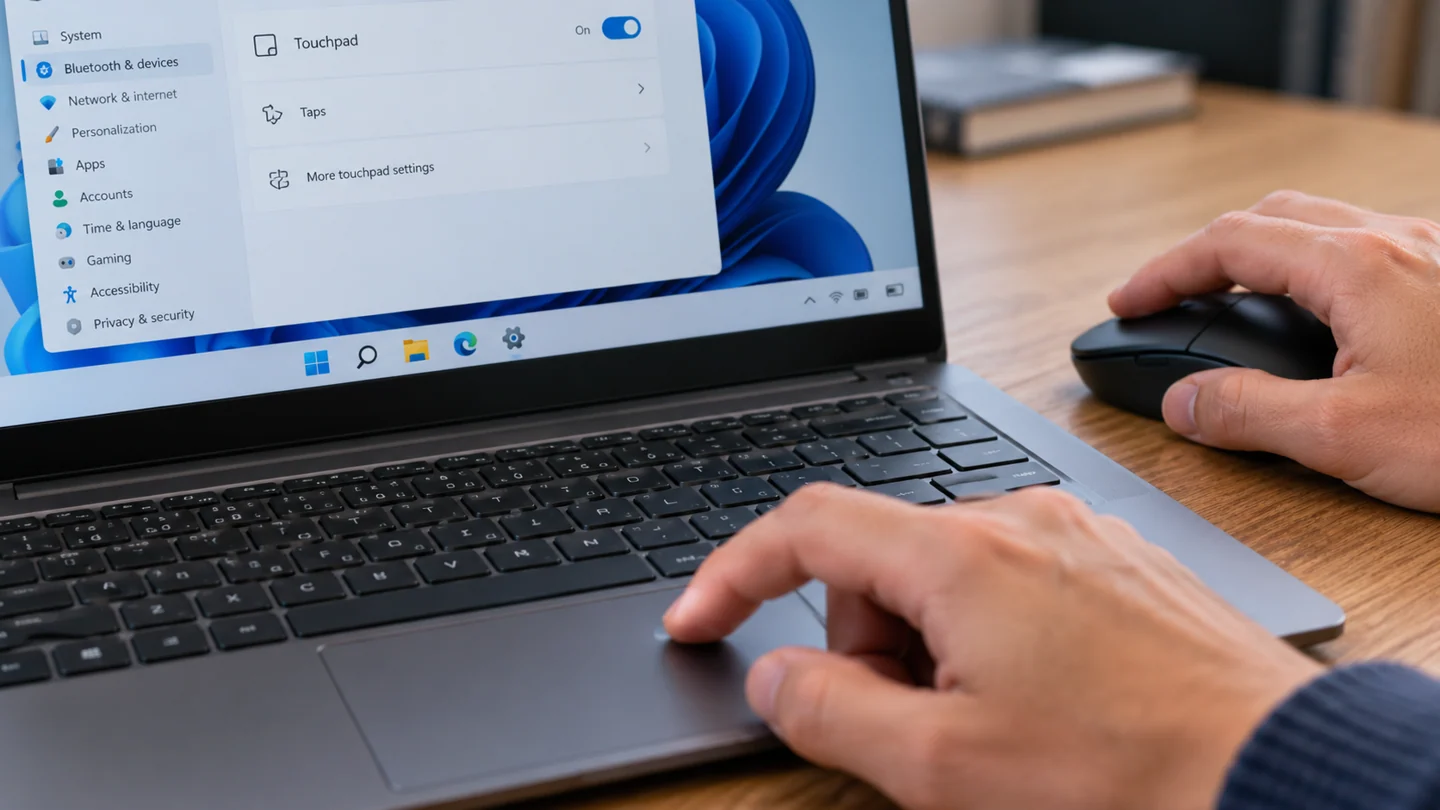
Step-by-step checks
- Check layout, accessibility settings and manufacturer toggles.
- Compare behaviour in another application.
- Record any spill, damage or case distortion.
Need help with this issue?
Share your model and symptoms. Confirm availability and the quote before booking.
What the results mean
A lifting trackpad can be a battery-swelling symptom. Stop charging if the case is distorted and have it inspected.
| Stage | Action |
|---|---|
| Start | Check layout, accessibility settings and manufacturer toggles. |
| Compare | Compare behaviour in another application. |
| Next step | Record any spill, damage or case distortion. |
Distinguish an input setting from a physical device fault
Record whether the issue affects one key or button, the entire device or only one application. Keyboard layouts, accessibility settings, shortcuts and hardware damage can produce similar-looking symptoms. A changed symbol or unexpected action does not automatically mean the keyboard or mouse needs replacement.
Use a simple local text field or another harmless task to compare behaviour. Where practical, test a known-good external device and inspect the relevant input settings. For a wireless device, check its normal power, pairing and connection status before changing drivers. Keep accessibility features that the user relies on in mind; disabling them without checking can create a different usability problem.
Make one reversible adjustment and repeat the original action. Check typing, shortcuts and the affected application afterwards, including sleep or reconnection if those trigger the problem. Do not remove keycaps, spray liquid or open the device without knowing its service requirements. If input failure follows a spill or physical impact, prioritise the appropriate hardware assessment rather than repeatedly powering the machine on to test it.
Before you finish
- One app compared with another
- Input layout and accessibility settings reviewed
- Known-good device compared where practical
- Original action retested after a single change
Repair checklist
If you need help, send RJ Computers your device model and the results of the checks above. Explain what must be preserved before work starts, especially files that have no other copy.
- Confirm assessment charges and what the quote includes.
- Ask for approval before additional parts or destructive software changes.
- Test the original symptom at handover and keep the repair details.
Ready for an assessment?
Share your model and symptoms. Confirm availability and the quote before booking.
Frequently asked questions
Does an external keyboard working prove the internal one is broken?
No. It confirms another input path works; settings, drivers, cabling and hardware still need checking.
What should I record before requesting help?
Record the full model, exact error or symptom, recent changes and what you already tried. Explain whether important files have a separate backup.
How do I arrange a repair assessment?
Call RJ Computers on +91 99715 24677 or use the WhatsApp booking button. Confirm availability, diagnostic fees and the scope of work before booking.
Conclusion
Start with the evidence and compare it with the symptom before choosing a repair. A lifting trackpad can be a battery-swelling symptom. Stop charging if the case is distorted and have it inspected. If the checks do not explain the problem, share your observations and ask for an assessment before approving work.