Quick answer
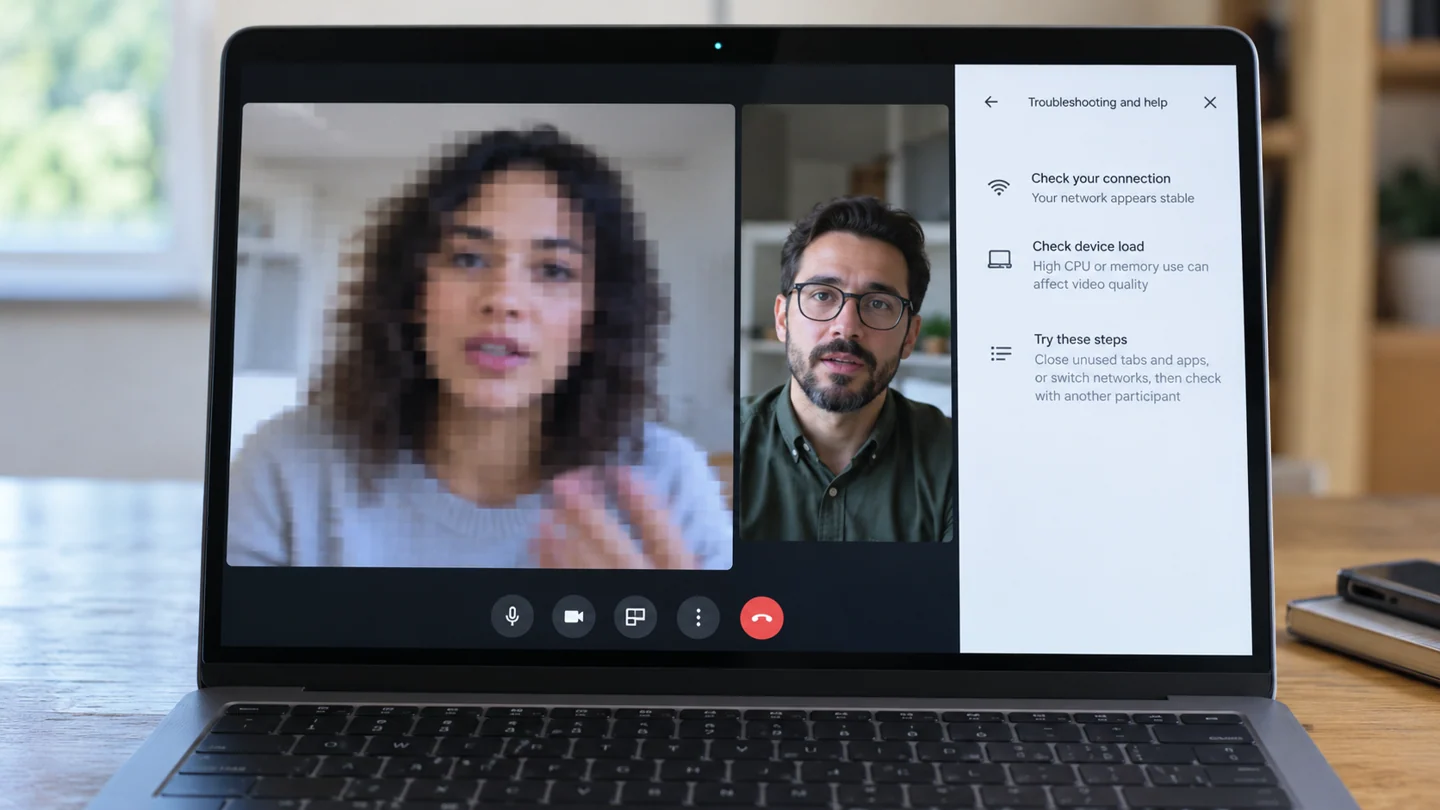
Use Meet's troubleshooting information and compare device load with connection conditions. Poor video does not identify one cause by itself.
Understand the issue
Record whether only your outgoing picture is affected or whether all received video also stutters. Pause nonessential heavy tasks you control and keep the same meeting test. Avoid changing office router policies without the network administrator.
Step-by-step checks
- Open Meet's Troubleshooting and help information.
- Review the reported device or network issue.
- Make one relevant change and ask another participant to compare the result.
Need help with this issue?
Share your model and symptoms. Confirm availability and the quote before booking.
What the results mean
If the image is blurry even in a local camera preview, inspect the camera and lighting separately from the connection.
| Stage | Action |
|---|---|
| Start | Open Meet's Troubleshooting and help information. |
| Compare | Review the reported device or network issue. |
| Next step | Make one relevant change and ask another participant to compare the result. |
Compare the device, selected input and application settings
Identify whether the problem affects sound output, microphone input, camera video or a meeting connection. The selected device in an application can differ from the operating system default. Write down the headset, speaker or camera model and its connection type before changing several settings.
Use a simple local recording or playback test where appropriate, then compare it with the affected meeting or media app. Check mute, volume, balance and permission controls relevant to the symptom. For Bluetooth devices, call and music modes can behave differently, so test the workflow that actually fails rather than only a song or system sound.
Change one selection or permission at a time and repeat the same test. Avoid sharing recordings containing private conversations while seeking help. If a work policy controls camera or microphone access, ask the administrator rather than bypassing it. After a correction, check the intended app, sleep or reconnection behaviour and whether other required devices still work. A successful speaker test does not prove the microphone or remote participants can hear correctly.
Before you finish
- Input and output problems distinguished
- App selection compared with system default
- Local test compared with the affected workflow
- Permissions and reconnection behaviour checked
Repair checklist
If you need help, send RJ Computers your device model and the results of the checks above. Explain what must be preserved before work starts, especially files that have no other copy.
- Confirm assessment charges and what the quote includes.
- Ask for approval before additional parts or destructive software changes.
- Test the original symptom at handover and keep the repair details.
Ready for an assessment?
Share your model and symptoms. Confirm availability and the quote before booking.
Frequently asked questions
Will a faster internet plan fix every blurry picture?
No. Camera quality, lighting, device load and connection behavior can all matter.
What should I record before requesting help?
Record the full model, exact error or symptom, recent changes and what you already tried. Explain whether important files have a separate backup.
How do I arrange a repair assessment?
Call RJ Computers on +91 99715 24677 or use the WhatsApp booking button. Confirm availability, diagnostic fees and the scope of work before booking.
Conclusion
If the image is blurry even in a local camera preview, inspect the camera and lighting separately from the connection.
Further reading: Official product guidance