Quick answer
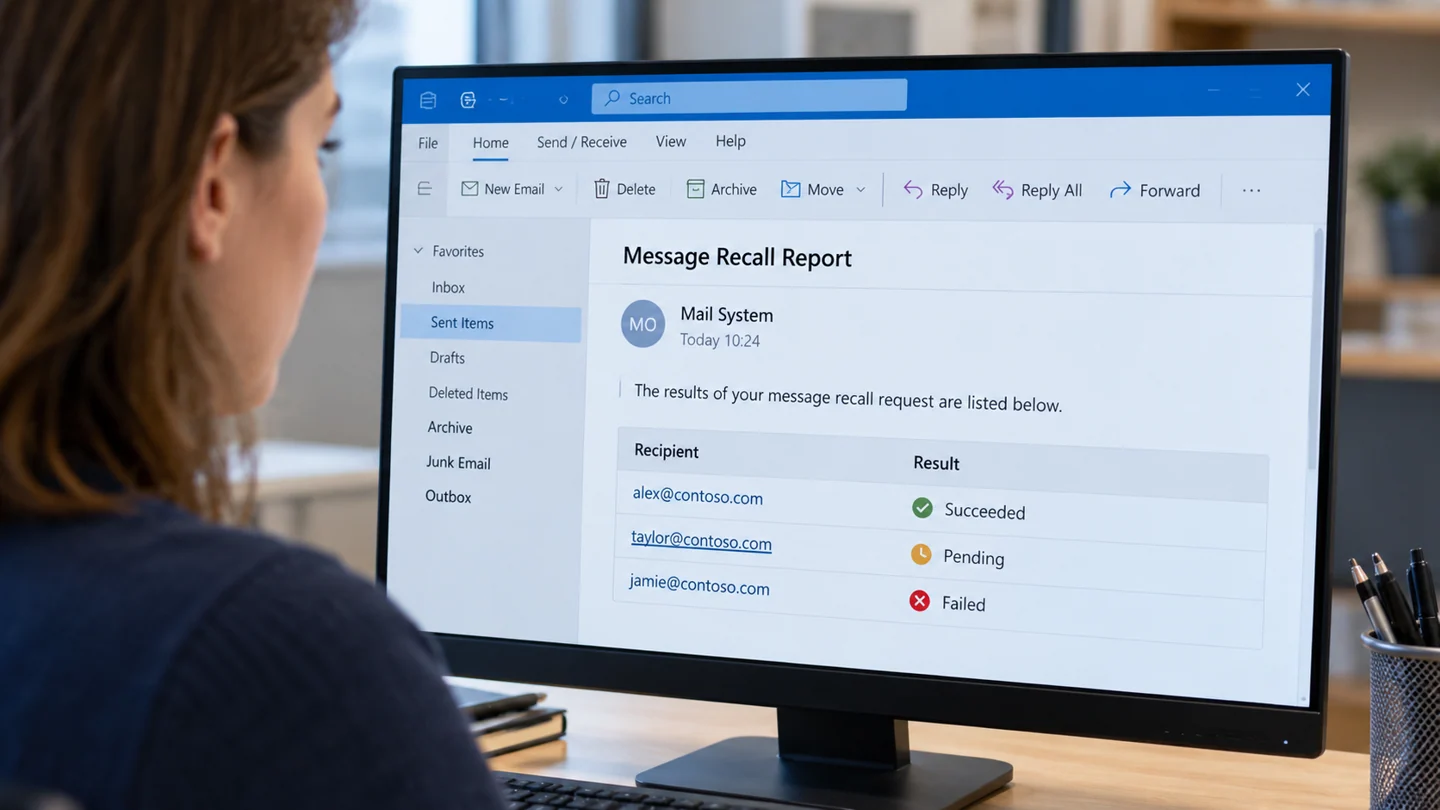
Requesting an Outlook recall does not prove that a message was removed. Open the recall report or available status notification and check the outcome for each recipient.
Understand the problem before changing anything
Recall eligibility depends on the account environment and the message circumstances. External recipients and unsupported accounts may not be recallable. The exact options differ between Outlook versions, so use the instructions for your account type.
Step-by-step checks
Confirm the sent message
Open the correct item in Sent Items and verify its recipients. A separate draft or forwarded copy is not the message you intend to recall.
Check recall availability
Use the supported recall command if your account and Outlook version provide it. Review the options before confirming the request.
Open the report
Look for the recall result email or report link. Distinguish success, pending and failed outcomes rather than relying on the fact the request was submitted.
Handle mixed outcomes
A result can differ by recipient. Keep a record of the relevant status and avoid assuming a group-wide success from one result.
Send a correction when needed
If the report shows failure or the message cannot be recalled, communicate a clear correction through an appropriate channel.
What to avoid
Recall is not a reliable way to erase information already read, copied or forwarded. For a sensitive misdelivery, follow your organisation’s incident process rather than waiting only for a report.
How to verify the result
Read the final recipient-level status where available. A pending result should remain pending in your own records until the service reports an outcome.
Identify the Outlook version, mailbox and message state
Classic Outlook, new Outlook, Outlook on the web and mobile Outlook do not use identical controls. Start by identifying the version and mailbox in use. A personal account, an organisational mailbox and a shared mailbox may also offer different features or permissions, even on the same computer.
Use one known message as a reference. Record its sender, subject, approximate date and expected folder without exposing private content in a screenshot. Check filters, conversation grouping and the selected mailbox before making account-wide changes. Where appropriate, compare the same mailbox through its usual web interface to distinguish a local viewing or sync problem from the server’s actual message state.
Review the result from the recipient or mailbox user’s perspective. A request sent, sharing link created or display option changed does not by itself prove delivery, access or recall succeeded. Check the available status report or the actual message outcome. Preserve local archives and unsynchronised work before account removal or major repairs, and keep any organisational security rules in place while investigating.
Before you finish
- Outlook version and account type identified
- Known message used for comparison
- Folder, filters and mailbox scope checked
- Actual outcome verified rather than assumed
Common question
Can I assume an external recipient lost access after recall?
No. Recall does not universally remove mail from external systems, and it cannot undo a copy or screenshot.
Need help with the next step?
Tell RJ Computers the device model, exact symptom, checks already tried and whether important files are backed up. Confirm availability, assessment charges and the scope of work before arranging a visit.
Reference and version notes
Check the official instructions for your exact product version; menu names and available features can differ.
Official product documentation