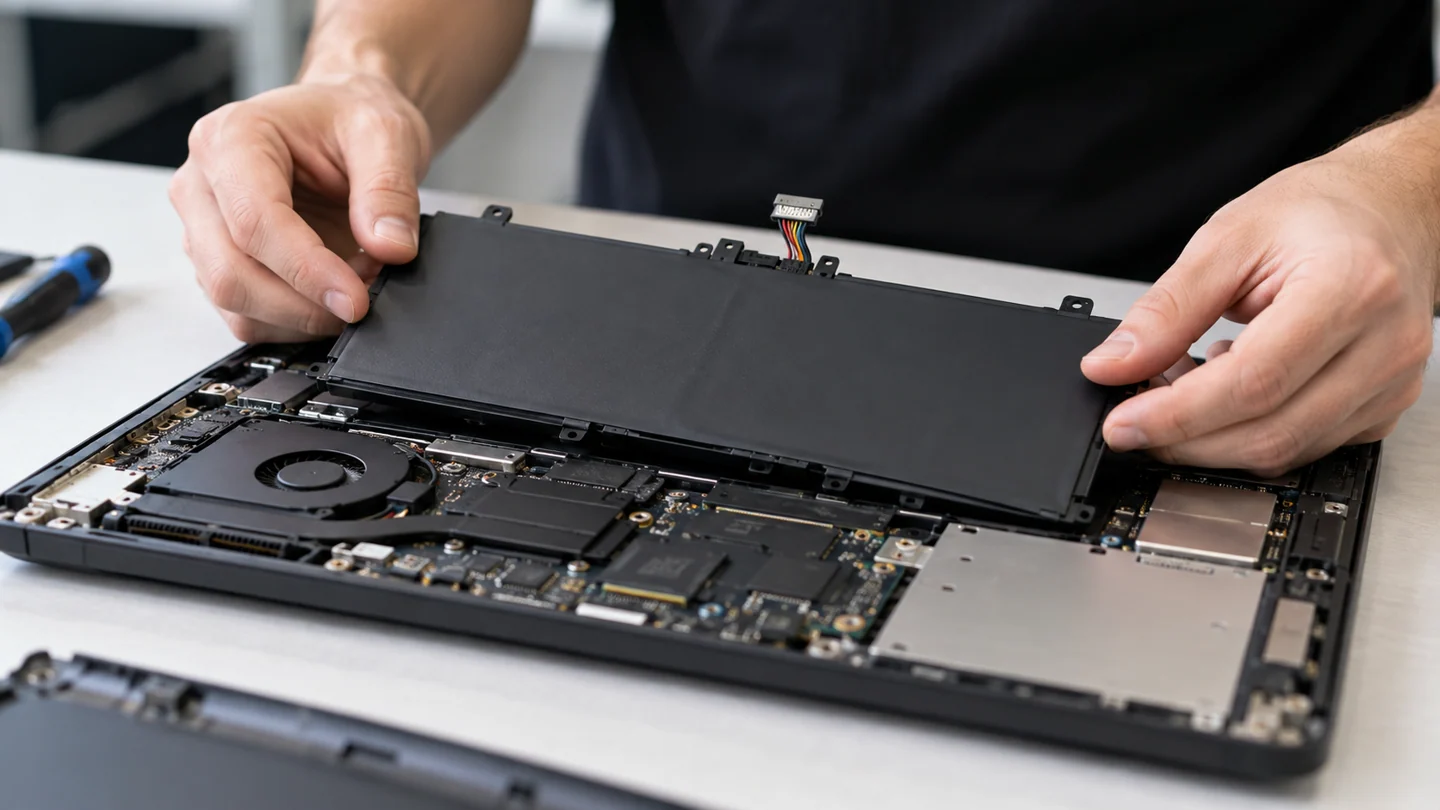
If you are searching for same day laptop battery replacement, you are usually looking for a quick explanation of the cause, what you can safely check yourself, and when professional repair is the better option.
Laptop faults often look similar even when the underlying cause is different. A display problem may be a panel, cable or graphics issue; charging trouble may involve the adapter, battery, DC jack or power circuit. If you are searching for “same day laptop battery replacement”, the symptom itself is useful but it does not always identify the failed part. RJ Computers checks the device, connections, related components and model compatibility before recommending repair or replacement.
Common causes and symptoms
The same symptom can have several causes. Look for what changed before the problem started: a fall or spill, a Windows update, a new driver, unusual heat, a new peripheral, a power interruption or a gradual performance decline. Intermittent faults are especially useful to document because they can disappear before a technician sees the device.
- Confirm the exact symptom and when it started
- Check power, cables and visible physical damage where safe
- Note any error message, sound, heat or intermittent behaviour
- Back up important files before non-essential repair work
- Use a technician for internal component, liquid-damage or board-level work
Safe troubleshooting steps
Begin with external checks and information gathering. Confirm the power source and cables, note error messages, disconnect unnecessary peripherals and test whether the issue follows a particular device or connection. Do not open a device or perform board-level work simply because an online guide suggests it; laptop batteries, power circuits and motherboard components require appropriate tools and handling.
For Windows problems, record the exact error and recent changes before resetting the operating system. For storage and data-recovery problems, avoid formatting, initializing or repeatedly writing to a drive when the files matter. For liquid damage, power the device down and arrange an inspection rather than repeatedly turning it on.
When repair or replacement makes sense
A repair is often worthwhile when the rest of the computer is in good condition and the failed component can be replaced economically. An upgrade can also extend the useful life of an older system. Replacement becomes more attractive when several major components have failed, parts are unavailable, or the total repair cost is close to the value of a suitable replacement device.
How RJ Computers can help
RJ Computers provides computer and laptop repair support across South Delhi, including Chhatarpur, Saket, Malviya Nagar, Mehrauli, Neb Sarai, Said-ul-Ajaib, Paryavaran Complex, Freedom Fighter Enclave and nearby areas, with appointments across Delhi. Depending on the fault, service can include diagnosis, component replacement, software troubleshooting, upgrades, data-related assistance, networking or on-site support.
Need help with this problem? Call +91 99715 24677 or WhatsApp RJ Computers and describe the model, symptoms and any error message.
Related repair guides
- Cpu Overheating Causes And Solutions
- Laptop Screen Black But Power Light Is On
- Cracked Laptop Screen Replacement Cost Guide
Frequently asked questions
What should I check first for same day laptop battery replacement?
Start with the simplest safe checks: power and cables, visible damage, recent software changes, error messages and whether another device or component shows the same symptom.
Can this problem be fixed without replacing the whole computer?
Often yes. Many faults are caused by a single component, configuration issue, driver, storage device, battery or connection. A diagnosis helps determine whether repair or replacement makes sense.
When should I call a technician?
If the issue persists after basic checks, involves liquid damage, unusual electrical smells, repeated crashes, important data or a suspected motherboard fault, professional diagnosis is the safer next step.
Separate battery wear, charging behaviour and power supply faults
Record the exact device and adapter model, whether the power indicator changes and whether the symptom occurs on battery, mains power or both. A battery capacity estimate, a loose connector and a laptop refusing to start are different clues; do not assume they all require the same part.
Inspect only the normal user-accessible parts first. Check the charger cable and connector for visible damage, and follow the manufacturer’s compatibility guidance for any replacement adapter. If a battery is swollen, leaking or lifting the case, stop using it rather than running a long discharge test. Keep the device away from pressure and do not puncture or flatten the battery.
Use supported diagnostics to collect capacity or adapter information where the device can operate safely. Compare the result with observed runtime and charging behaviour under a similar workload. After a repair, verify normal charging, sleep and unplugged use as appropriate. Preserve important files before work that could interrupt power or require storage access, and let a technician investigate internal power circuitry rather than opening a mains power supply yourself.
Before you finish
- Device and adapter models identified
- Battery and mains behaviour compared
- Physical battery condition considered first
- Normal charging and runtime verified after work