Quick answer
An SSD or RAM upgrade can improve an appropriate workload, but the right part depends on the exact computer. Check storage interface, memory type, available slots and data migration requirements before ordering.
Understand the problem before changing anything
An SSD can reduce storage delays; more RAM can help when the system runs short of working memory. Neither automatically fixes overheating, a failing motherboard or a slow internet connection. Diagnose the bottleneck before choosing an upgrade.
Step-by-step checks
Identify the exact computer
Share the full laptop model or desktop motherboard model. Product family names alone do not establish compatible parts.
Check the present bottleneck
Review workload, memory use and storage activity. Ask whether the objective is quicker startup, heavier multitasking, capacity or replacing a failing drive.
Confirm storage compatibility
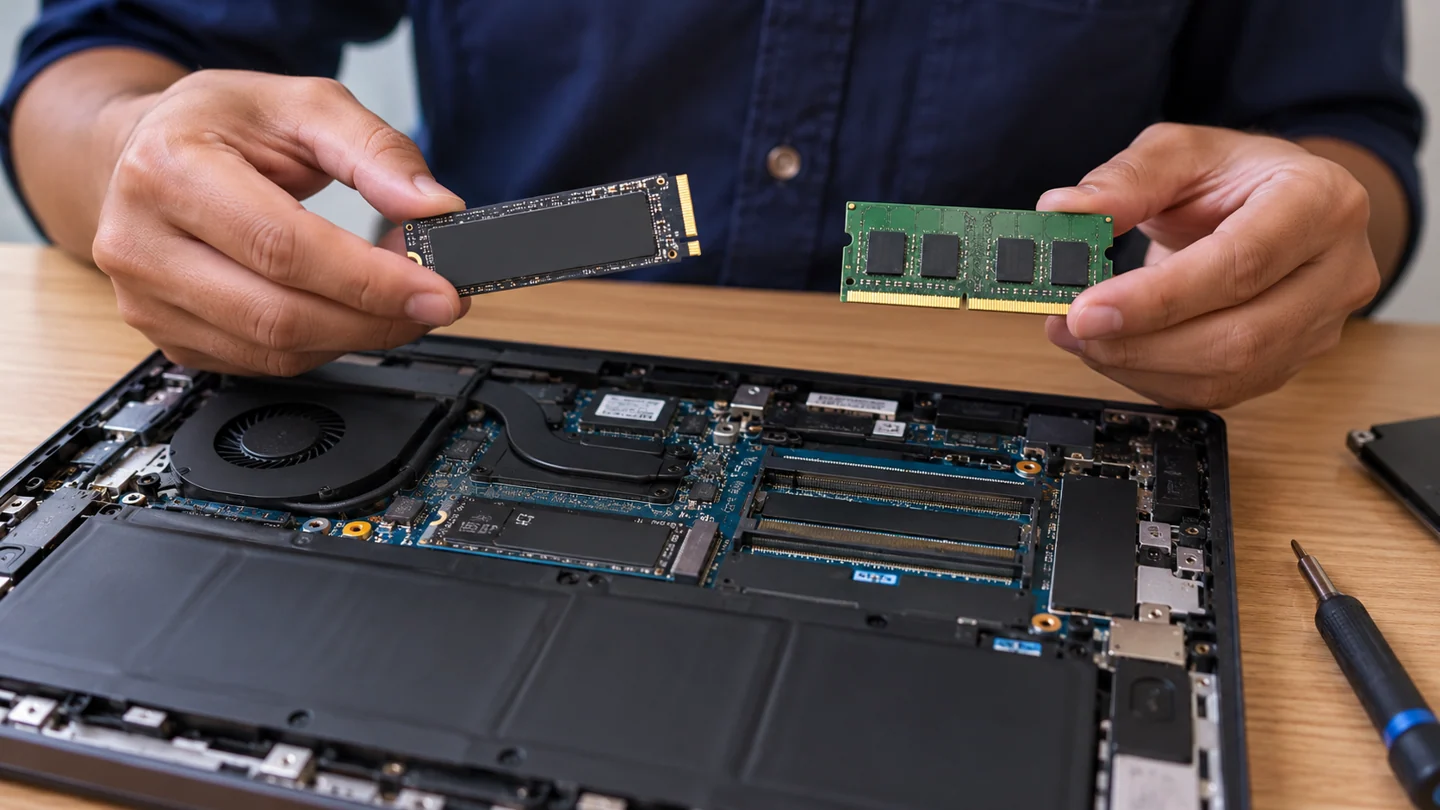
SATA and NVMe are different interfaces, and an M.2 shape alone does not prove support. Check slot type, physical length and firmware requirements.
Confirm memory compatibility
Check DDR generation, module form, supported capacity and free slots. Some laptops have soldered memory and cannot accept a normal module upgrade.
Agree the data plan
Choose a supported migration or fresh installation, verify a backup and keep recovery keys available. A failing source drive may require recovery before migration.
Test after installation
Confirm detected capacity, normal startup and the intended workload. Check encryption and application access before deciding what to do with the old drive.
What to avoid
Do not buy a part solely because it fits the connector visually. Avoid erasing the old drive until the new installation and backup have been verified.
How to verify the result
Ask for the installed part specification and the migration outcome. Improvement should be assessed using the original workload, not an unrelated benchmark.
Choose parts for the device and the actual workload
Identify the full computer or motherboard model before choosing an upgrade. A connector’s shape, a familiar product name or a similar-looking laptop does not establish compatibility. Check supported interfaces, physical dimensions, capacity limits and any soldered components against the exact model documentation.
Describe what should improve: startup, application loading, multitasking, storage capacity or a particular professional task. Compare that aim with the current bottleneck. More memory does not repair a failing drive, and an SSD does not correct weak Wi-Fi or overheating. Request a part-specific quote and clarify whether installation, migration and testing are included.
Protect the existing setup before the change. Verify a separate backup, preserve recovery keys and agree whether the plan is migration or a clean installation. After installation, check recognised capacity, normal startup and the original workload. Confirm application and file access before deciding how to reuse or erase an old drive. Keep a record of the installed specification and any repair or parts terms that were agreed.
Before you finish
- Exact model and compatibility confirmed
- Desired workload improvement defined
- Backup and migration plan agreed
- Installed capacity and real workload tested
Common question
Will every slow laptop benefit from more RAM?
No. It helps when memory limits the workload and the device supports an upgrade. Storage, heat, software and network problems need separate checks.
Need help with the next step?
Tell RJ Computers the device model, exact symptom, checks already tried and whether important files are backed up. Confirm availability, assessment charges and the scope of work before arranging a visit.
Service availability, charges, parts and repair terms are confirmed directly with RJ Computers. Manufacturer warranty service is a separate route.