Quick answer
Use the share's correct network address and authorized credentials. A missing discovery entry does not always mean the server is unreachable.
Understand the issue
Ask the server owner for the exact host and share name. Keep the computer on the approved network or VPN. Do not change server permissions broadly because a guessed address failed, and never paste passwords into a support screenshot.
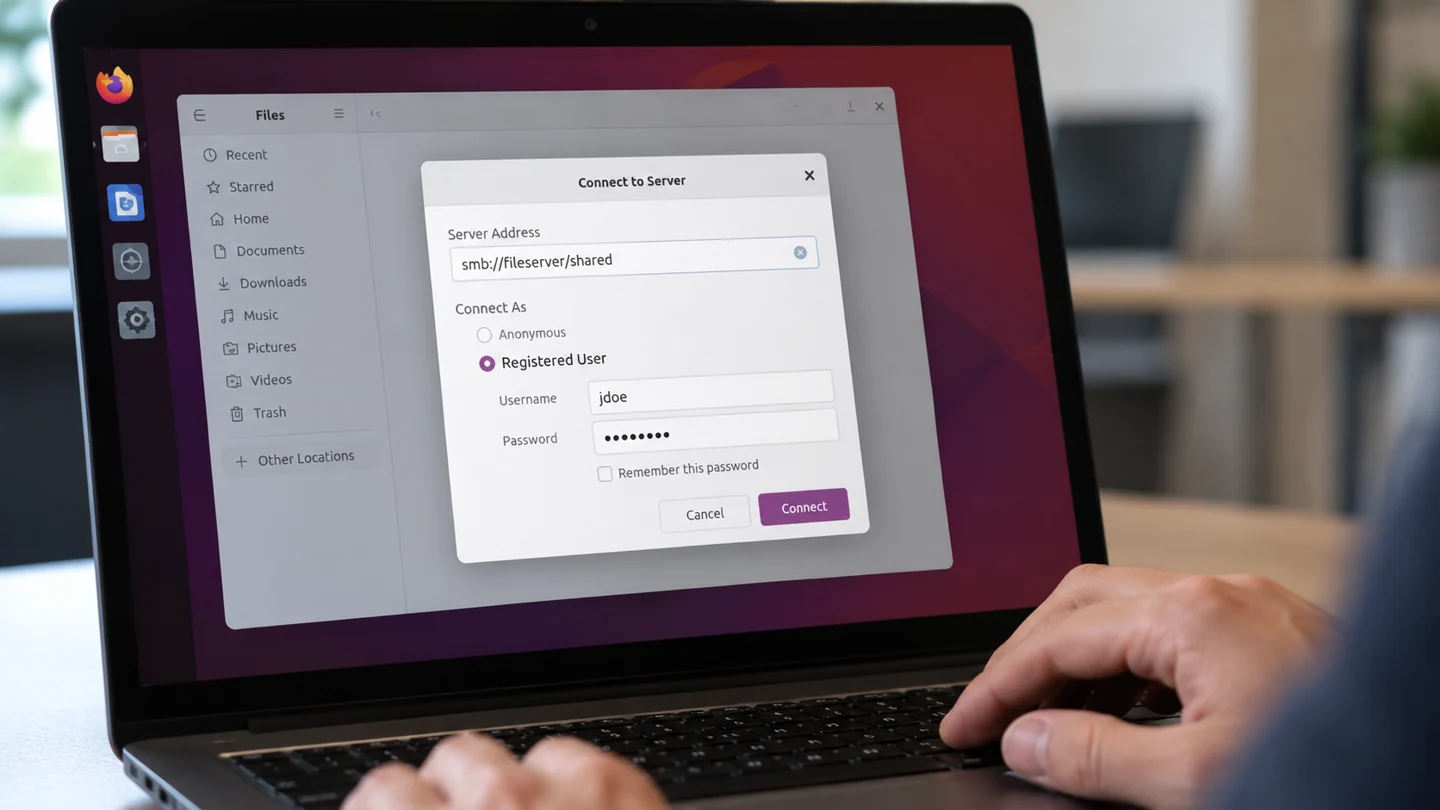
Step-by-step checks
- Open Other Locations in Files.
- Enter the provided SMB address in Connect to Server.
- Authenticate with the approved account and test access to a harmless file.
Need help with this issue?
Share your model and symptoms. Confirm availability and the quote before booking.
What the results mean
If browsing works but saving fails, check share and folder permissions with the owner rather than reconnecting repeatedly.
| Stage | Action |
|---|---|
| Start | Open Other Locations in Files. |
| Compare | Enter the provided SMB address in Connect to Server. |
| Next step | Authenticate with the approved account and test access to a harmless file. |
Match Linux instructions to your release and device
Record the distribution, release and relevant hardware before following a command from a tutorial. Ubuntu releases and desktop environments can expose different settings, and a command intended for another package system may not apply. Read what a command is expected to change before entering it.
Separate observation from modification. Reading a setting, listing a device or checking a log is different from installing packages, changing a repository or writing to a disk. For storage work, identify the exact device by model and capacity rather than relying on a letter or device name copied from an example. Preserve needed files before any operation that writes to storage.
Make one documented change and keep the output needed to evaluate it. Avoid piping an unfamiliar download directly into a privileged shell. If installation is involved, inspect proposed package additions, removals and replacements before accepting them. After the test, repeat the original task and check normal updates or device access. A successful command exit does not, on its own, prove the user-facing problem is solved.
Before you finish
- Distribution and release identified
- Read-only checks separated from changes
- Correct package source or device verified
- Command result compared with actual behaviour
Repair checklist
If you need help, send RJ Computers your device model and the results of the checks above. Explain what must be preserved before work starts, especially files that have no other copy.
- Confirm assessment charges and what the quote includes.
- Ask for approval before additional parts or destructive software changes.
- Test the original symptom at handover and keep the repair details.
Ready for an assessment?
Share your model and symptoms. Confirm availability and the quote before booking.
Frequently asked questions
Is my Ubuntu login automatically valid on every Windows share?
No. The server can require a separate account or domain credentials.
What should I record before requesting help?
Record the full model, exact error or symptom, recent changes and what you already tried. Explain whether important files have a separate backup.
How do I arrange a repair assessment?
Call RJ Computers on +91 99715 24677 or use the WhatsApp booking button. Confirm availability, diagnostic fees and the scope of work before booking.
Conclusion
If browsing works but saving fails, check share and folder permissions with the owner rather than reconnecting repeatedly.
Further reading: Official product guidance