Quick answer
A read benchmark measures transfer performance. It does not repair a disk or prove it is healthy. On a failing drive, preserving data comes before repeated performance testing.
Understand the problem before changing anything
The interface, drive type and background workload all influence results. A USB adapter can limit an SSD, while a hard disk varies across its surface. Compare tests under similar conditions.
Step-by-step checks
Check whether testing is appropriate
If the drive clicks, disconnects or has unreadable files without a backup, stop unnecessary tests and preserve data first.
Identify the device
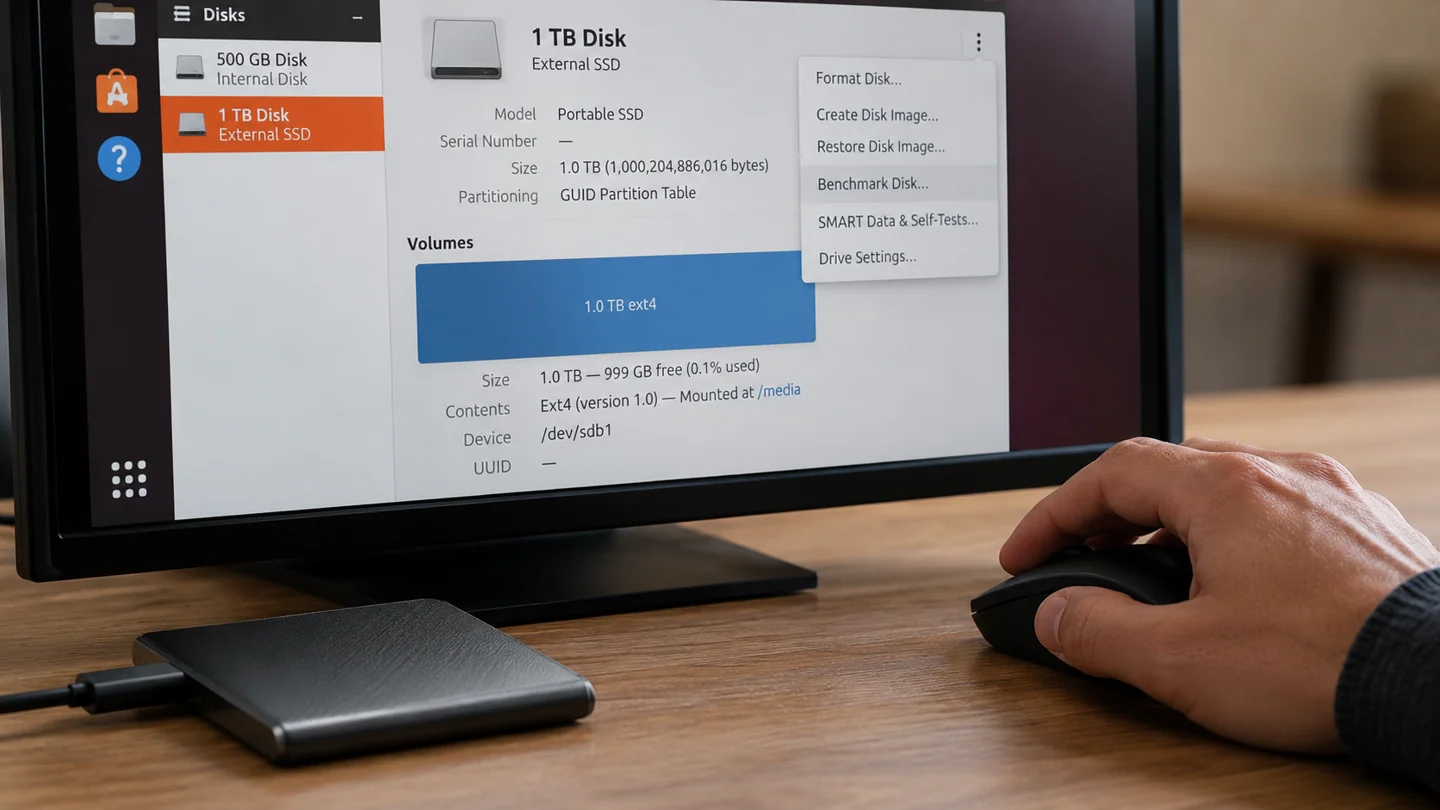
In Ubuntu Disks, match the model and capacity. Do not confuse a removable drive with the system disk.
Open Benchmark Disk
Use the selected device’s menu and review the test parameters before starting.
Keep it read-only
Leave the write-benchmark option disabled for a read comparison. Administrative authorisation may still be required.
Record conditions
Note interface, workload and results. Compare a repeat under similar conditions without repeatedly stressing a suspect drive.
What to avoid
Do not run a write benchmark on needed data without understanding the tool’s requirements. A fast read result does not replace health checks or backups.
How to verify the result
Use results to identify a possible connection or workload bottleneck. Investigate errors and disconnections separately instead of calling the benchmark a fix.
Match Linux instructions to your release and device
Record the distribution, release and relevant hardware before following a command from a tutorial. Ubuntu releases and desktop environments can expose different settings, and a command intended for another package system may not apply. Read what a command is expected to change before entering it.
Separate observation from modification. Reading a setting, listing a device or checking a log is different from installing packages, changing a repository or writing to a disk. For storage work, identify the exact device by model and capacity rather than relying on a letter or device name copied from an example. Preserve needed files before any operation that writes to storage.
Make one documented change and keep the output needed to evaluate it. Avoid piping an unfamiliar download directly into a privileged shell. If installation is involved, inspect proposed package additions, removals and replacements before accepting them. After the test, repeat the original task and check normal updates or device access. A successful command exit does not, on its own, prove the user-facing problem is solved.
Before you finish
- Distribution and release identified
- Read-only checks separated from changes
- Correct package source or device verified
- Command result compared with actual behaviour
Common question
Can a benchmark repair a damaged drive?
No. It measures performance. Data recovery and hardware diagnosis are separate work.
Need help with the next step?
Tell RJ Computers the device model, exact symptom, checks already tried and whether important files are backed up. Confirm availability, assessment charges and the scope of work before arranging a visit.
Reference and version notes
Check the official instructions for your exact product version; menu names and available features can differ.
Official product documentation