Quick answer
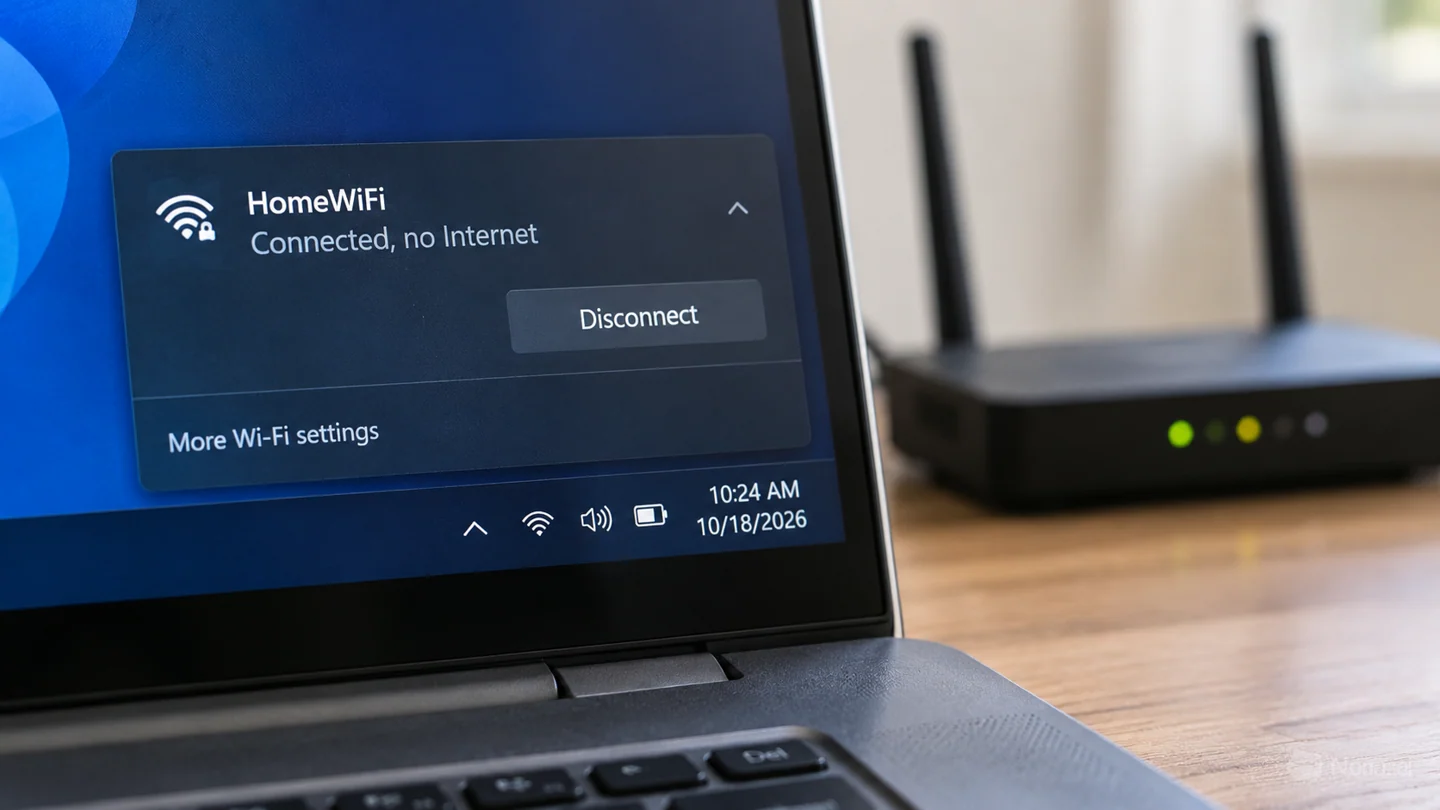
A Wi-Fi connection links your computer to an access point; it does not guarantee that the router has internet access. Compare another device and another connection before resetting the computer’s network settings.
Understand the problem before changing anything
The fault can sit with one app, the PC, the router, a sign-in portal or the internet provider. A controlled comparison is more useful than changing DNS, drivers and router settings together.
Step-by-step checks
Check two trusted sites and apps
If only one service fails, investigate that service rather than the entire network.
Compare another device
Test a phone or second computer on the same Wi-Fi. Turn off mobile data during the comparison so it does not mask the Wi-Fi failure.
Check the network’s upstream access
Inspect the router or modem status and any provider outage notice. Public networks may require an approved sign-in page.
Compare the affected PC on another trusted network
A working hotspot test can help isolate the original network, but account for mobile data limits.
Use targeted Windows diagnostics
Review Network & internet status and the supported troubleshooter. Check saved proxy or VPN settings if the issue began after a configuration change.
What to avoid
Do not factory-reset a router before recording its required provider settings. Avoid disabling security software or removing work VPN configuration as a blind first step.
How to verify the result
Retest the same sites on the original connection. Record whether the fix affected only this PC or every device, and restore any temporary diagnostic settings.
Find whether the problem follows the device or the network
Record the connection type, affected device and exact task that fails. A Wi-Fi signal shows a link to an access point, while internet access depends on additional equipment and services. One failed website or app does not prove the whole connection is unavailable.
Compare the same task on another device using the same network, then on the original device using another trusted connection where practical. Ensure a phone is not silently using mobile data during a Wi-Fi test. These comparisons help separate a device setting, router issue, provider outage or service-specific problem without changing every network option.
Preserve the information required to restore service before resets. Router settings, work VPNs, static addresses and printer connections can be disrupted by broad network changes. Use supported diagnostic tools and keep security protections in place. After a targeted correction, repeat the original task on the original network and check other required services such as printing or shared folders. Record which devices improved so a temporary workaround is not mistaken for a complete repair.
Before you finish
- Same task compared on two devices
- Mobile data excluded from Wi-Fi comparison
- Required network settings recorded before reset
- Original connection and local services retested
Common question
Why does my phone work while the PC does not?
Confirm the phone is using the same Wi-Fi rather than mobile data. If it is, focus next on the PC’s configuration and connection.
Need help with the next step?
Tell RJ Computers the device model, exact symptom, checks already tried and whether important files are backed up. Confirm availability, assessment charges and the scope of work before arranging a visit.
Reference and version notes
Check the official instructions for your exact product version; menu names and available features can differ.
Microsoft: Wi-Fi connection troubleshooting