Quick answer
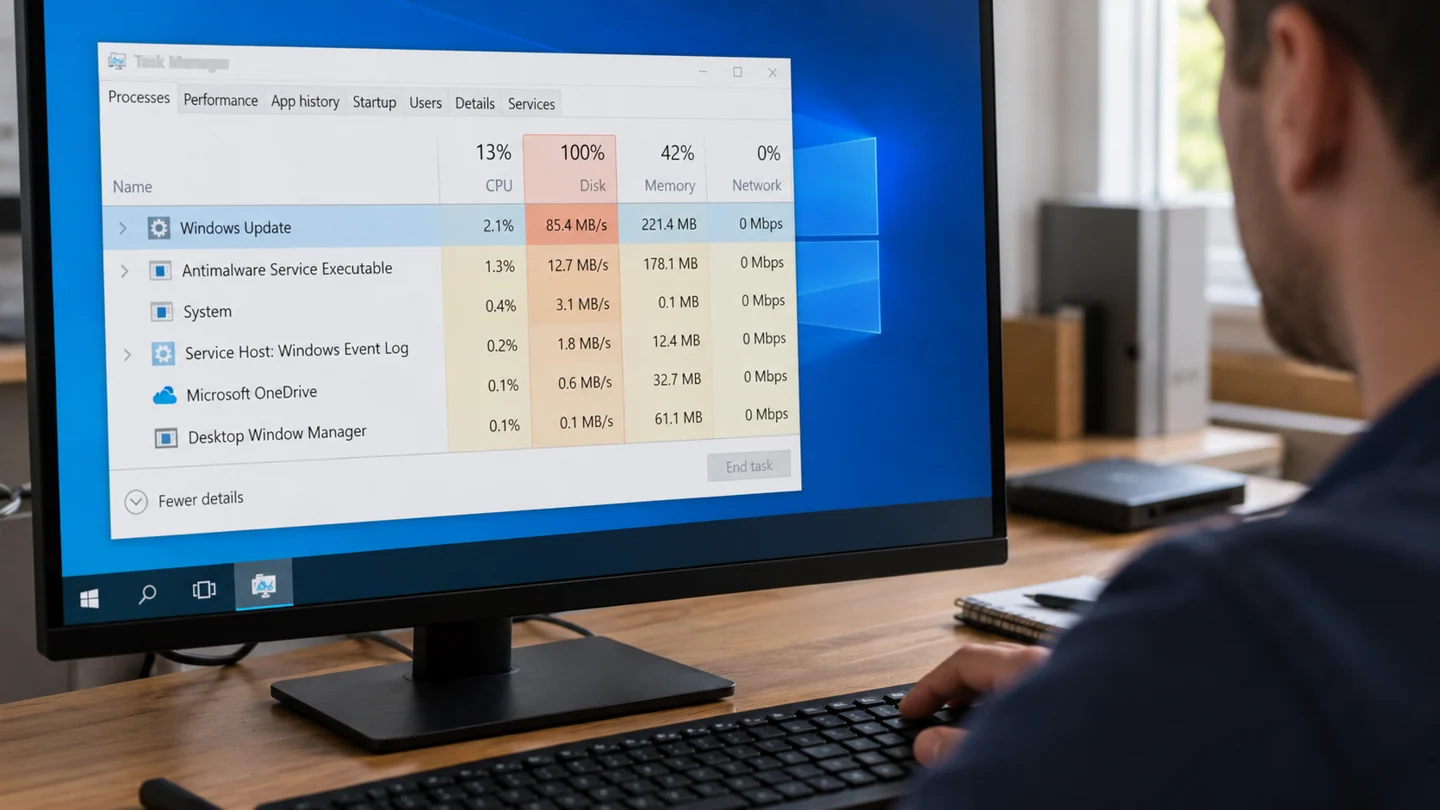
In Task Manager, 100% disk activity means the storage device is busy, not necessarily full. Identify the process and workload before disabling Windows services or deciding the drive must be replaced.
Understand the problem before changing anything
A slow hard drive can spend a long time on many small requests even at a modest transfer rate. Updates, scanning, low free space and failing storage are different causes. Windows 10 support status also matters for a longer-term maintenance plan.
Step-by-step checks
Observe the workload
Open Task Manager and sort by Disk. Record the top process and whether the activity occurs at startup, during updates or throughout normal use.
Let known maintenance complete
If an update or trusted scan is progressing, keep the PC powered and give it time. Investigate a repeated stall rather than interrupting every job.
Check free space and responsiveness
Review storage use and remove only unneeded files through normal tools. Keep a backup before larger cleanup changes.
Check drive condition
If the system freezes, reports read errors or the drive disconnects, prioritise accessible files and manufacturer diagnostics rather than prolonged stress tests.
Plan an appropriate fix
Depending on evidence, the next step may be application repair, more memory, an SSD upgrade or replacing failing storage. Check Windows 11 eligibility or other supported options for an older PC.
What to avoid
Do not disable antivirus, updates or indexing permanently because a generic tutorial suggests it. Windows 10’s free support ended on 14 October 2025; extended arrangements and migration options require separate checking.
How to verify the result
Compare activity during an ordinary session after the suspected workload completes. Check application launch time and errors, not just whether the percentage briefly drops.
Use a controlled Windows check before a broad reset
Record the Windows version, exact message and recent change before troubleshooting. A setting in Windows 10 can differ from its Windows 11 equivalent, and a work-managed PC may restrict options intentionally. Identify whether the issue affects one app, one account or the whole machine.
Make a small comparison that matches the symptom. Try the same task in another suitable app or with a known-good file where practical, and note what changes. Keep important work saved before restarting. If the computer is unstable or storage reports errors, preserve accessible data before long tests or major repairs. Screenshots should show the relevant message without passwords, recovery keys or unrelated private information.
Change one relevant setting or component at a time and repeat the original task. Prefer supported Windows and manufacturer tools over downloaded fix-all scripts or registry cleaners. A reset, reinstall or account removal can affect apps, settings and data, so it should be a deliberate later step with a verified recovery plan. After a correction, check normal restart, updates and required applications rather than stopping at a single successful click.
Before you finish
- Windows version and recent changes recorded
- One app or account distinguished from system-wide failure
- Important work protected before larger changes
- Original task and normal restart verified
Common question
Does 100% disk mean the drive is out of space?
No. Active time and free capacity are separate measurements. Check both before deciding what to change.
Need help with the next step?
Tell RJ Computers the device model, exact symptom, checks already tried and whether important files are backed up. Confirm availability, assessment charges and the scope of work before arranging a visit.
Reference and version notes
Check the official instructions for your exact product version; menu names and available features can differ.
Microsoft: Device performance and health