Quick answer
A repeated Automatic Repair screen means Windows is failing to start successfully. Identify the stage of failure and protect important data before using reset, reinstall or disk-changing commands.
Understand the problem before changing anything
The same loop can follow a failed update, damaged system files, a storage problem or hardware instability. Recovery tools are useful, but choosing more destructive options without a backup can turn a startup fault into a data-loss problem.
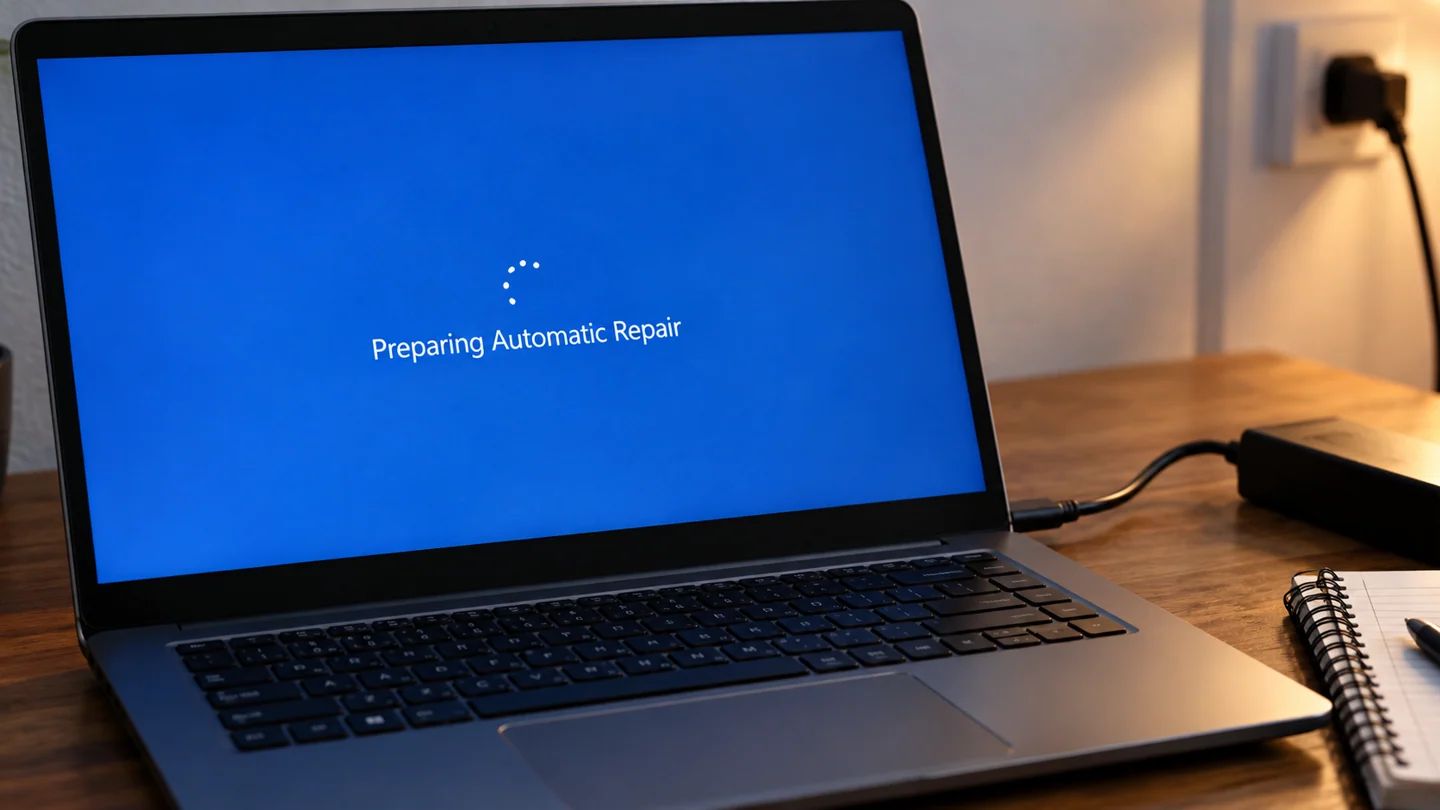
Step-by-step checks
Record the screen and recent changes
Note any error code, update, power interruption or newly fitted hardware. Check whether Advanced options is accessible.
Prepare recovery access
Keep the charger connected and locate the BitLocker recovery key if device encryption is enabled. Do not share that key in a public support request.
Try a supported non-reset option
From a visible recovery environment, consider Startup Repair. If the problem directly followed an update, review the available uninstall-update or restore options.
Check storage evidence
Missing drives, read errors or unusual sounds need attention before repeated repair attempts. Data recovery may take priority over restoring Windows quickly.
Choose reset or reinstall deliberately
Understand which option keeps files, removes apps or erases a disk. Verify backups and the selected destination before proceeding.
What to avoid
Do not run a copied sequence of partition, format or boot commands without identifying the disk layout. Avoid repeated forced power interruptions when recovery tools are already available.
How to verify the result
A successful boot should be followed by a backup and checks for the original cause. Test a normal restart and confirm essential applications and files remain accessible.
Use a controlled Windows check before a broad reset
Record the Windows version, exact message and recent change before troubleshooting. A setting in Windows 10 can differ from its Windows 11 equivalent, and a work-managed PC may restrict options intentionally. Identify whether the issue affects one app, one account or the whole machine.
Make a small comparison that matches the symptom. Try the same task in another suitable app or with a known-good file where practical, and note what changes. Keep important work saved before restarting. If the computer is unstable or storage reports errors, preserve accessible data before long tests or major repairs. Screenshots should show the relevant message without passwords, recovery keys or unrelated private information.
Change one relevant setting or component at a time and repeat the original task. Prefer supported Windows and manufacturer tools over downloaded fix-all scripts or registry cleaners. A reset, reinstall or account removal can affect apps, settings and data, so it should be a deliberate later step with a verified recovery plan. After a correction, check normal restart, updates and required applications rather than stopping at a single successful click.
Before you finish
- Windows version and recent changes recorded
- One app or account distinguished from system-wide failure
- Important work protected before larger changes
- Original task and normal restart verified
Common question
Will Startup Repair delete all my files?
It is intended to repair startup problems rather than reset the PC, but it does not replace a backup. Reset and reinstall choices have different consequences.
Need help with the next step?
Tell RJ Computers the device model, exact symptom, checks already tried and whether important files are backed up. Confirm availability, assessment charges and the scope of work before arranging a visit.
Reference and version notes
Check the official instructions for your exact product version; menu names and available features can differ.
Microsoft: Troubleshoot Windows startup