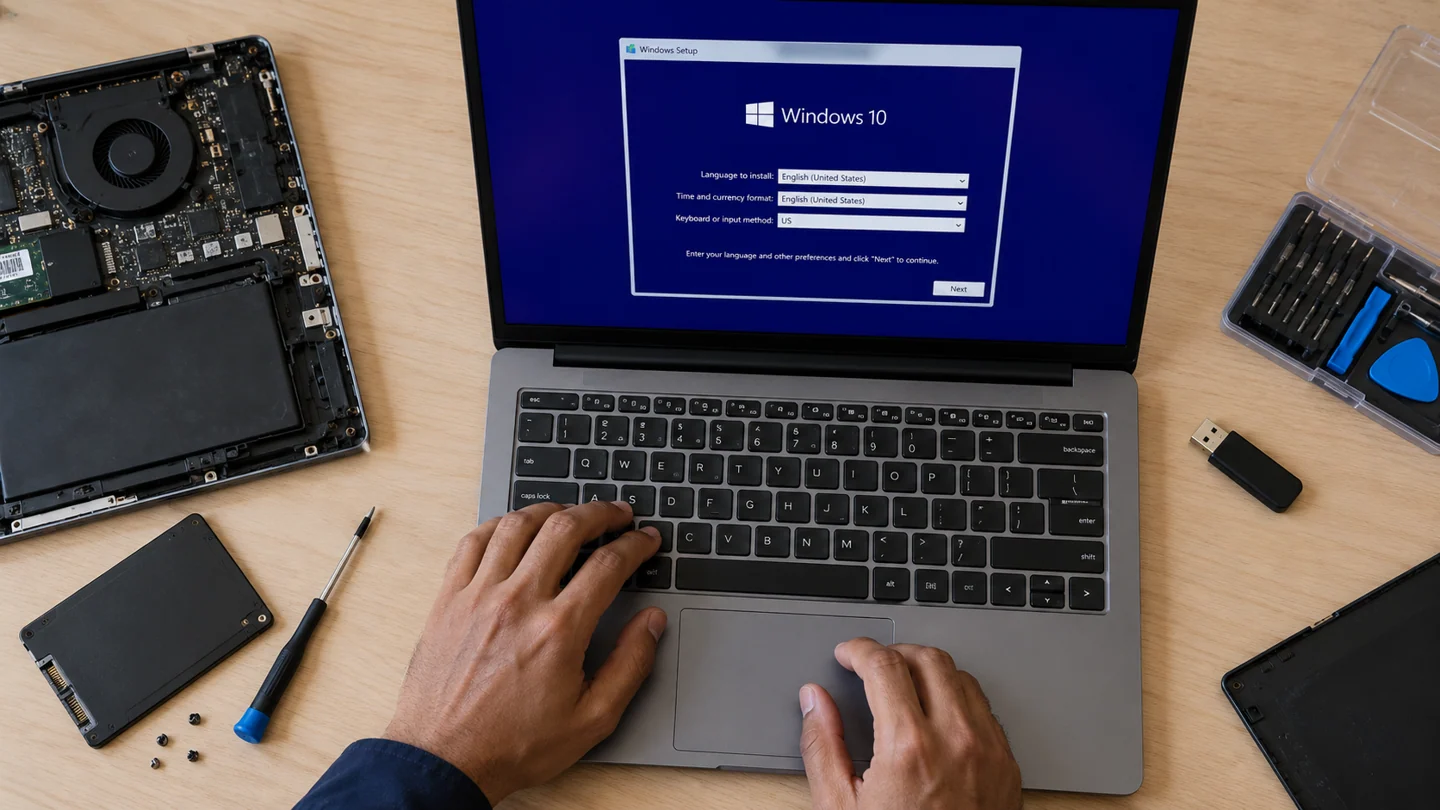
If you are searching for Windows 10 Installation, the first step is to identify whether the problem is caused by hardware, software, power, heat, connectivity or a component that has reached the end of its useful life. RJ Computers offers practical diagnosis and repair support across Delhi, with core coverage in South Delhi and appointments in other areas.
What this service covers
Windows 10 Installation can involve more than a single part. A technician should check the device symptoms, related components, compatibility and the cause of the fault before recommending a replacement. This helps avoid unnecessary parts and repeat failures.
- Initial fault diagnosis and symptom assessment
- Component or software testing
- Repair, replacement, installation or configuration where appropriate
- Performance and stability checks after service
- Advice on backup, maintenance and prevention
Common signs you may need windows 10 installation
Typical signs include intermittent faults, reduced performance, unexpected shutdowns, error messages, missing devices, unusual noise, overheating, connection failures or a component that no longer responds. Some problems can have several causes, so diagnosis is important before buying a replacement.
Why choose RJ Computers?
RJ Computers focuses on clear diagnosis, compatible parts and straightforward service. For suitable problems, on-site support can be arranged at a home or office. More complex board-level or component work may require workshop handling after the repair requirements are explained.
Related computer repair guides
Virus & Malware Removal Software Installation Windows Troubleshooting Desktop Computer Assembly Desktop Computer Diagnosis
RJ Computers service areas
Core South Delhi service includes Chhatarpur, Saket, Malviya Nagar, Neb Sarai, IGNOU, Mehrauli, Vasant Kunj, Sangam Vihar and Mahipalpur. We also take appointments across other parts of Delhi when service is available.
Book a repair or diagnostic visit
Tell us your device type, brand/model, main symptom and location. This gives the technician a better starting point and helps determine whether the issue can be handled at home or needs further testing.
Call RJ Computers → WhatsApp RJ Computers
Frequently asked questions
Can you diagnose the problem before replacing a part?
Yes. Diagnosis should come before a component replacement whenever practical, especially for charging, power, display and performance faults.
Do you provide doorstep service?
Doorstep support is available for suitable repairs and troubleshooting in the core service zone, with appointments for other Delhi locations.
Will every repair be completed during the first visit?
Not always. Parts availability, board-level faults, liquid damage and complex data recovery can require additional testing or workshop work.
Use a controlled Windows check before a broad reset
Record the Windows version, exact message and recent change before troubleshooting. A setting in Windows 10 can differ from its Windows 11 equivalent, and a work-managed PC may restrict options intentionally. Identify whether the issue affects one app, one account or the whole machine.
Make a small comparison that matches the symptom. Try the same task in another suitable app or with a known-good file where practical, and note what changes. Keep important work saved before restarting. If the computer is unstable or storage reports errors, preserve accessible data before long tests or major repairs. Screenshots should show the relevant message without passwords, recovery keys or unrelated private information.
Change one relevant setting or component at a time and repeat the original task. Prefer supported Windows and manufacturer tools over downloaded fix-all scripts or registry cleaners. A reset, reinstall or account removal can affect apps, settings and data, so it should be a deliberate later step with a verified recovery plan. After a correction, check normal restart, updates and required applications rather than stopping at a single successful click.
Before you finish
- Windows version and recent changes recorded
- One app or account distinguished from system-wide failure
- Important work protected before larger changes
- Original task and normal restart verified