Quick answer
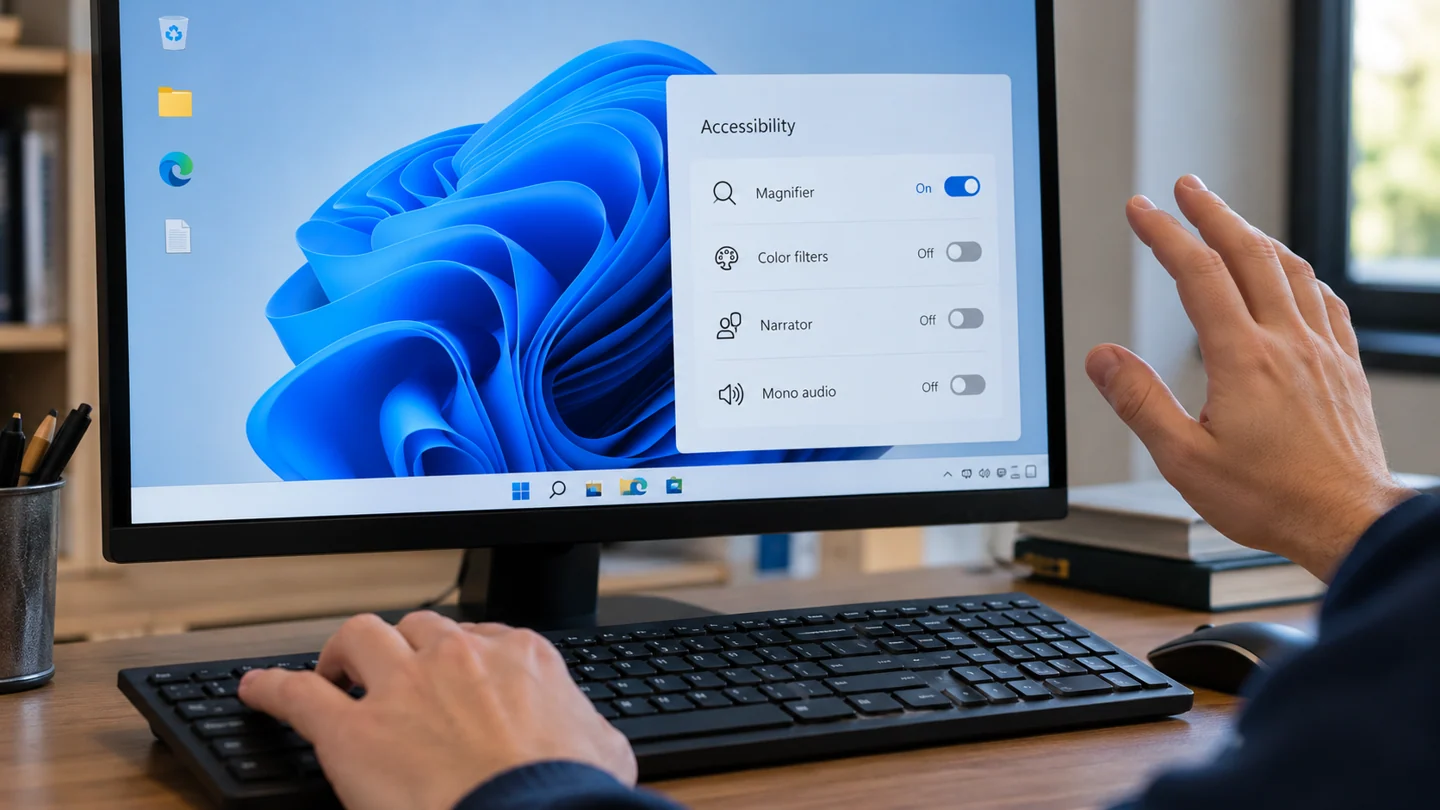
Check the exact shortcut and enabled accessibility shortcuts before changing applications. Similar combinations can perform different actions.
Understand the issue
Write down every key pressed, including Windows, Ctrl, Alt and Shift. Test in a harmless context so an unintended shortcut cannot alter an important file.
Step-by-step checks
- Record the complete key combination.
- Compare it with Windows and app shortcut assignments.
- Adjust only the unwanted configurable shortcut.
Need help with this issue?
Share your model and symptoms. Confirm availability and the quote before booking.
What the results mean
Do not assume a keyboard fault when the same combination consistently invokes a documented feature.
| Stage | Action |
|---|---|
| Start | Record the complete key combination. |
| Compare | Compare it with Windows and app shortcut assignments. |
| Next step | Adjust only the unwanted configurable shortcut. |
Use a controlled Windows check before a broad reset
Record the Windows version, exact message and recent change before troubleshooting. A setting in Windows 10 can differ from its Windows 11 equivalent, and a work-managed PC may restrict options intentionally. Identify whether the issue affects one app, one account or the whole machine.
Make a small comparison that matches the symptom. Try the same task in another suitable app or with a known-good file where practical, and note what changes. Keep important work saved before restarting. If the computer is unstable or storage reports errors, preserve accessible data before long tests or major repairs. Screenshots should show the relevant message without passwords, recovery keys or unrelated private information.
Change one relevant setting or component at a time and repeat the original task. Prefer supported Windows and manufacturer tools over downloaded fix-all scripts or registry cleaners. A reset, reinstall or account removal can affect apps, settings and data, so it should be a deliberate later step with a verified recovery plan. After a correction, check normal restart, updates and required applications rather than stopping at a single successful click.
Before you finish
- Windows version and recent changes recorded
- One app or account distinguished from system-wide failure
- Important work protected before larger changes
- Original task and normal restart verified
Repair checklist
If you need help, send RJ Computers your device model and the results of the checks above. Explain what must be preserved before work starts, especially files that have no other copy.
- Confirm assessment charges and what the quote includes.
- Ask for approval before additional parts or destructive software changes.
- Test the original symptom at handover and keep the repair details.
Ready for an assessment?
Share your model and symptoms. Confirm availability and the quote before booking.
Frequently asked questions
Should I disable every shortcut to solve one conflict?
No. Identify the specific combination and preserve useful controls.
What should I record before requesting help?
Record the full model, exact error or symptom, recent changes and what you already tried. Explain whether important files have a separate backup.
How do I arrange a repair assessment?
Call RJ Computers on +91 99715 24677 or use the WhatsApp booking button. Confirm availability, diagnostic fees and the scope of work before booking.
Conclusion
Do not assume a keyboard fault when the same combination consistently invokes a documented feature.
Further reading: Official product guidance