Quick answer
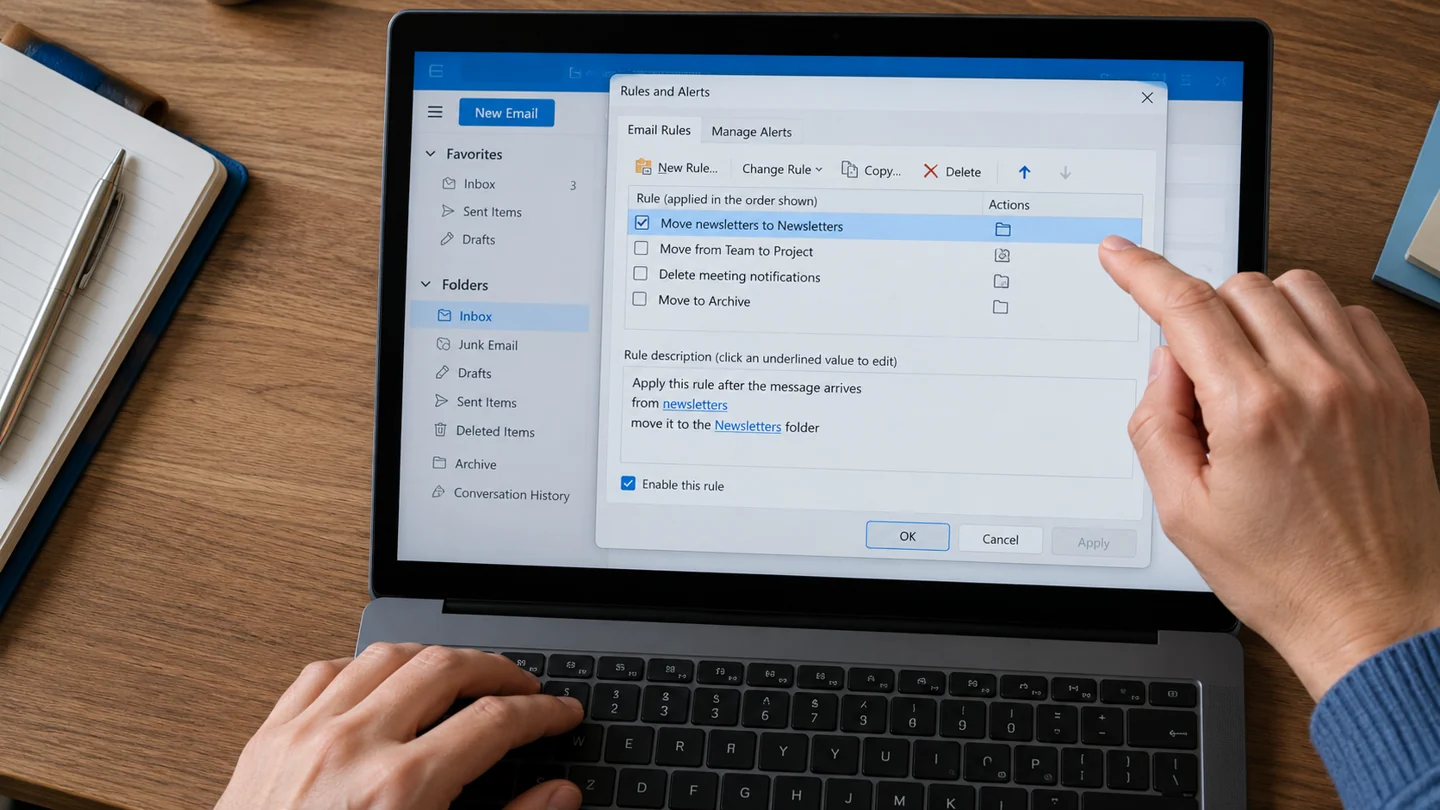
Review rules that move or process incoming messages. An automatic move can make delivered mail look as though it vanished.
Understand the issue
Find an example in the destination folder and note its sender and time. Keep a record of existing rules before changing them, especially on a shared workflow.
Step-by-step checks
- Inspect applicable mail rules.
- Check their conditions and actions.
- Change only the relevant rule and test with an expected message.
Need help with this issue?
Share your model and symptoms. Confirm availability and the quote before booking.
What the results mean
A rule change should preserve useful organization while removing the unintended action.
| Stage | Action |
|---|---|
| Start | Inspect applicable mail rules. |
| Compare | Check their conditions and actions. |
| Next step | Change only the relevant rule and test with an expected message. |
Identify the Outlook version, mailbox and message state
Classic Outlook, new Outlook, Outlook on the web and mobile Outlook do not use identical controls. Start by identifying the version and mailbox in use. A personal account, an organisational mailbox and a shared mailbox may also offer different features or permissions, even on the same computer.
Use one known message as a reference. Record its sender, subject, approximate date and expected folder without exposing private content in a screenshot. Check filters, conversation grouping and the selected mailbox before making account-wide changes. Where appropriate, compare the same mailbox through its usual web interface to distinguish a local viewing or sync problem from the server’s actual message state.
Review the result from the recipient or mailbox user’s perspective. A request sent, sharing link created or display option changed does not by itself prove delivery, access or recall succeeded. Check the available status report or the actual message outcome. Preserve local archives and unsynchronised work before account removal or major repairs, and keep any organisational security rules in place while investigating.
Before you finish
- Outlook version and account type identified
- Known message used for comparison
- Folder, filters and mailbox scope checked
- Actual outcome verified rather than assumed
Repair checklist
If you need help, send RJ Computers your device model and the results of the checks above. Explain what must be preserved before work starts, especially files that have no other copy.
- Confirm assessment charges and what the quote includes.
- Ask for approval before additional parts or destructive software changes.
- Test the original symptom at handover and keep the repair details.
Ready for an assessment?
Share your model and symptoms. Confirm availability and the quote before booking.
Frequently asked questions
Should I delete every rule to find one problem?
First identify the matching rule and make a targeted change.
What should I record before requesting help?
Record the full model, exact error or symptom, recent changes and what you already tried. Explain whether important files have a separate backup.
How do I arrange a repair assessment?
Call RJ Computers on +91 99715 24677 or use the WhatsApp booking button. Confirm availability, diagnostic fees and the scope of work before booking.
Conclusion
A rule change should preserve useful organization while removing the unintended action.
Further reading: Official product guidance