Quick answer
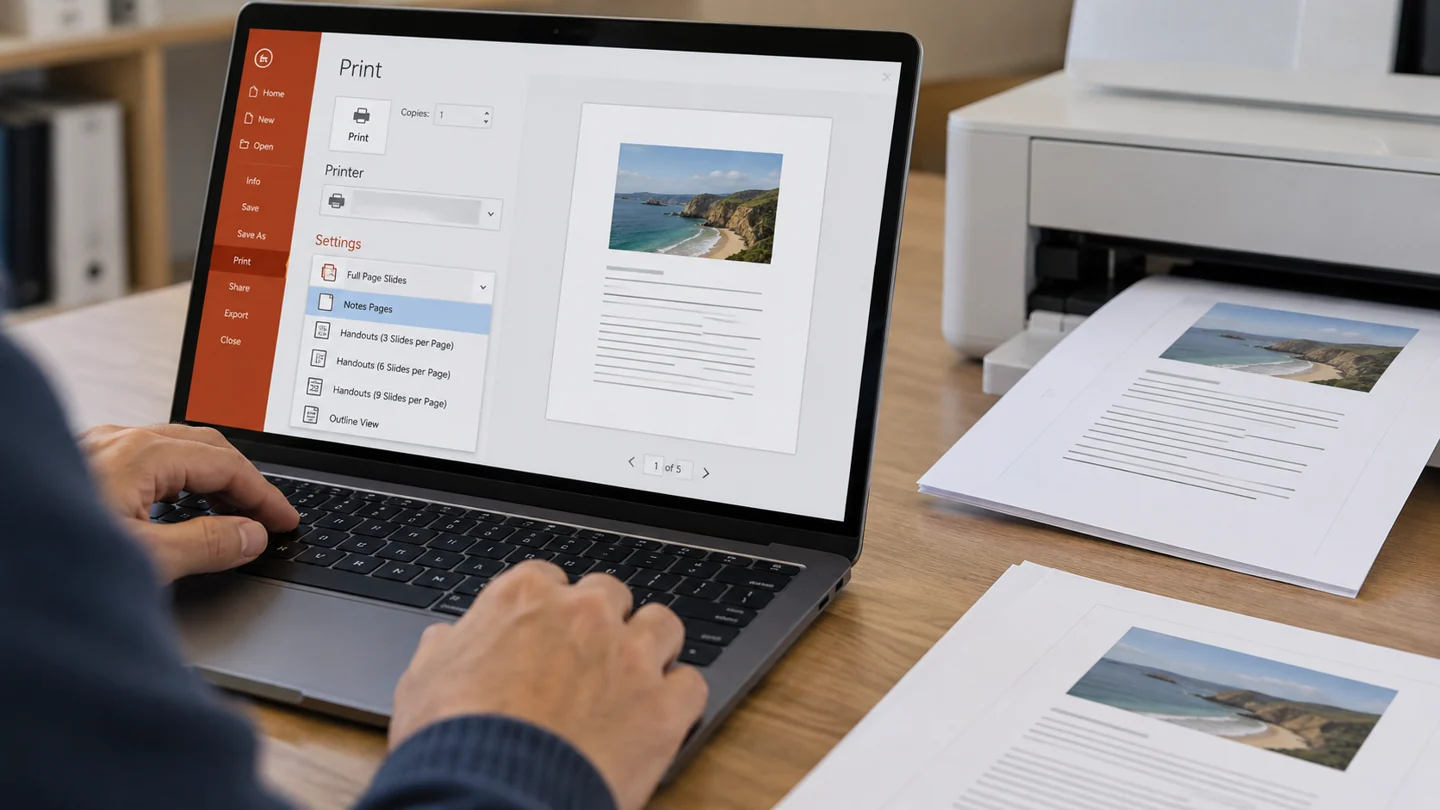
Choose Notes Pages in the print layout when you need slide notes on paper. Full-page slides and handouts serve different purposes.
Understand the issue
Review the notes themselves before printing, especially if the output will be distributed. Presenter-only reminders may contain private or unfinished wording. Use a test page containing a longer note so you can inspect how it fits.
Step-by-step checks
- Open the print dialog for the presentation.
- Select Notes Pages rather than the ordinary slide layout.
- Preview the notes and print a representative page.
Need help with this issue?
Share your model and symptoms. Confirm availability and the quote before booking.
What the results mean
Keep an internal notes copy separate from audience materials if the notes are not intended for sharing.
| Stage | Action |
|---|---|
| Start | Open the print dialog for the presentation. |
| Compare | Select Notes Pages rather than the ordinary slide layout. |
| Next step | Preview the notes and print a representative page. |
Check the presentation in the format people will actually use
Save a copy of the presentation before changing layout, output settings or embedded media. Note the PowerPoint version and whether the deck depends on external fonts, linked files or an online service. A presentation that works on the author’s computer may rely on something not included in the delivered file.
Choose representative slides for testing: a title slide, one with dense text, one with an image or chart and any slide containing media. Review them at presentation size rather than only in the editing thumbnail pane. If a change affects slide dimensions or printing, inspect both the application preview and the physical display or printer that will be used.
Reopen the delivery copy and run the intended workflow from beginning to end. Check readable text, complete images, working media and the correct slide order. For a PDF or handout, verify that export settings match the purpose; an editing file, projected show and printed handout are separate outputs. Retain the original deck and record any linked assets that recipients must also receive through an approved sharing method.
Before you finish
- Original deck preserved
- Representative slide types selected
- Linked and embedded content distinguished
- Slideshow, export or printed result tested
Repair checklist
If you need help, send RJ Computers your device model and the results of the checks above. Explain what must be preserved before work starts, especially files that have no other copy.
- Confirm assessment charges and what the quote includes.
- Ask for approval before additional parts or destructive software changes.
- Test the original symptom at handover and keep the repair details.
Ready for an assessment?
Share your model and symptoms. Confirm availability and the quote before booking.
Frequently asked questions
Does selecting more slides per page automatically include notes?
No. Choose a layout specifically intended for speaker notes.
What should I record before requesting help?
Record the full model, exact error or symptom, recent changes and what you already tried. Explain whether important files have a separate backup.
How do I arrange a repair assessment?
Call RJ Computers on +91 99715 24677 or use the WhatsApp booking button. Confirm availability, diagnostic fees and the scope of work before booking.
Conclusion
Keep an internal notes copy separate from audience materials if the notes are not intended for sharing.
Further reading: Official product guidance